


Showing posts with label Android. Show all posts
Showing posts with label Android. Show all posts
Monday, November 24, 2014
 12:28 AM





- Unlimited Money
- Unlocked all themes / costumes
- Unlimited Save Me Keys
- Set save me key cost to 1
- All boards available – ALL as in every one known to exist
- All characters available
Download Subway Surfers Mod APK 1.31.0
Monday, January 20, 2014
 12:14 AM
 Rupesh Kafle
 Android, Bloatware, Galaxy S4, Samsung, Tricks
 No comments

2. Open NoBloat , Press Allow when Superuser pops up.
3. Select System apps.
4. Select apps you don’t use and choose Backup and Delete to remove it. (choosing this option will allow you to put them back if you want it back)
# To reinstall the apps you've removed, simply click on backed up apps and reinstall them.
# After
you realize you truly don’t want the app, then click on backed up apps,
click on the app, and click delete backup to free up the storage space
Saturday, January 18, 2014
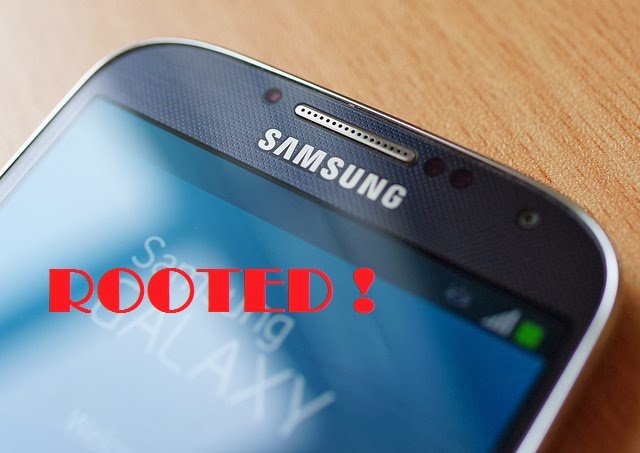 Are you upset because Samsung takes up a lot of your Galaxy S4′s storage with its bloatware or perhaps you want to enable multi window features with all apps? If yes then having root access can help you. Simply follow these steps below to root your Samsung Galaxy S4 and we'll write more post to remove bloatware, enable multi window feature and more tricks and hacks for your Galaxy S4.
Remember rooting will void your S4's warranty and you'll be doing this at your own risk.
Steps:
- Download and Install Samsung USB drivers to your pc. [DOWNLOAD]
- Goto Setting , Select More > About Device > then keep tapping Build Number until it says you are a developer.
- Go back and click on Developer option.
- Toggle USB debugging to on.
- Connect your phone and computer via USB.
- Download Motochopper exploit. [DOWNLOAD]
- Extract it and double click the run.bat file inside the extracted folder and keep hitting enter to finish. [If you are using Linux or OS X, navigate to the extracted directory in a terminal and execute "./run.sh".]
- Tap Ok on your device.
- If you see Superuser in your app drawer on the device then congrats your device is rooted.
Keep visiting us for tricks and hacks for your device ;)
Wednesday, December 25, 2013

Features:
- Hide your IP. Nobody will know where are you from.
- Encrypt internet data. Protect your Internet data with strong 256-bit encryption.
- Use any site you needed without any limitations.
- Remove banners and tracking systems.
Download Hideman VPN
Wednesday, June 12, 2013
- 2:57 AM
- Rupesh Kafle
- Android, softwares, Tricks
- 2 comments

BlueStacks App Player lets you run android apps fast and fullscreen on Windows and Mac.
Over 5 million people around the world use top apps like Angry Birds Space, Kik Messenger, Where's My Water and more on their laptops with BlueStacks. It took 10 engineers two years to build the complex "LayerCake" technology that enables this to happen – but you get to experience it free while in beta.


How to use Bluestack?
- Download and install BlueStacks on your computer.
- Launch BlueStacks App Player.
- Goto App Store in Bluestacks App Player and download any app or game you want
- Then play it on your pc :) (You can install your previous downloaded apk files in bluestack player)

Friday, March 15, 2013
- 3:28 AM
- Unknown
- Android, Samsung
- No comments

Camera
The Samsung Galaxy S4 is equipped with a 13 megapixel digital camera, which is drastically better than the average for all Smartphones. This smartphone's camera is also equipped with Autofocus, Burst Mode, Digital Zoom, Dual Camera Record, Front Facing Camera, Image Stabilization, LED Flash, Panorama, Rear Facing Camera, Sound & Shot and Video Recording.
Display
The Samsung Galaxy S4 has a 4.99 inch screen, which is 34.9% more than the average for all Smartphones. In addition, the Samsung Galaxy S4's is equipped with following display features: Additional Display Support, Ambient Light Sensor, Multi Touch, Proximity Sensor and Scratch Resistant Glass
Battery
The Samsung Galaxy S4 has a 2,600 mAh Li Ion battery.
Technical Specifications
The Samsung Galaxy S4 has a 1.60 GHz Octo Core processor, which is drastically more than the average for all Smartphones. This smartphone offers 16,384 MB of internal storage, which is 300% more than the average for all Smartphones. Additionally this particular smartphone is also equipped with 2,048 MB of RAM, which is 300% better than the average for all Smartphones.
The Samsung Galaxy S4 is equipped with a 13 megapixel digital camera, which is drastically better than the average for all Smartphones. This smartphone's camera is also equipped with Autofocus, Burst Mode, Digital Zoom, Dual Camera Record, Front Facing Camera, Image Stabilization, LED Flash, Panorama, Rear Facing Camera, Sound & Shot and Video Recording.
Display
The Samsung Galaxy S4 has a 4.99 inch screen, which is 34.9% more than the average for all Smartphones. In addition, the Samsung Galaxy S4's is equipped with following display features: Additional Display Support, Ambient Light Sensor, Multi Touch, Proximity Sensor and Scratch Resistant Glass
Battery
The Samsung Galaxy S4 has a 2,600 mAh Li Ion battery.
Technical Specifications
The Samsung Galaxy S4 has a 1.60 GHz Octo Core processor, which is drastically more than the average for all Smartphones. This smartphone offers 16,384 MB of internal storage, which is 300% more than the average for all Smartphones. Additionally this particular smartphone is also equipped with 2,048 MB of RAM, which is 300% better than the average for all Smartphones.
see this video for more info..
Wednesday, February 6, 2013
- 3:12 AM
- Rupesh Kafle
- Android, Root, Samsung
- No comments
Hello guys, You want to root your samsung galaxy y device but stuck somewhere using computer. Don't worry. Here is a easy trick for you. Just follow these simple steps below.


Safety First :
As you are going to do a risky job follow these safety measures before starting.
- Your Smartphone should be fully charged or at least with 60% charged, in order to get ready for rootin. If you try on low battery your Device will crash and hence will get Jammed.
- Backup all your Data like Images, Contacts etc before rooting because all files will get removed during rooting of the device.
- Close all the background applications, especially antivirus and battery checkup utility.
- Before Starting, Enable USB Debugging on your mobile. This can be done as follows Settings> Applications > Development
Steps Required in Rooting your Samsung Galaxy Y S5360:
- Download the Required Root Package Here.
- Connect your Device Samsung Galaxy Y S5360 to the computer only via USB. (Forgot about Bluetooth)
- No Extraction is required. Copy the Zip file to the root of the SD card and remember not to paste in any folder as it would cause an interruption.
- Never Unplug your Device Samsung Galaxy Y S5360 while rooting
- Switch off your Smartphone to enter into recovery mode
- Keep pressing The Volume Up Key, Home key and Power Button to enter the recovery mode.
- Now, as you are in the recovery mode only Volume up and down would work to select the file. So use those buttons and select Update.zip .
- The rooting will start taking place after you have selected on Superuser.zip. It would usually take about 10-15 mins
- After rooting the device will automatically restart and then normal booting will take place. The rooting of your Phone is now done!
Disclaimer: NpTrick family is responsible in case of any damage to the mobile. So, try this at your own risk.
Wednesday, January 30, 2013
- 10:39 AM
- Rupesh Kafle
- Android, Root, Unroot
- 1 comment
Every Android
mobile or Tablet user must have come across the "Root" at-least once.
Many great applications available in Android market like various Ad-Blocking,
Remote access, Anti-Theft applications require to root your Android device.

Rooting have
many advantage. It give you 100% control of your device but only problem is it
remove the manufacturer warranty.
That not the only problem. Many owners don't
know how to root the Android and fear to root it because of much geeky work.
But now you
can root your Android device with just a one click. Its as simple as
transferring your songs and videos form computer to your memory card.
Visit and
Download 'Unlock Root' software from Unlock Root website. Install the software
on your computer having Windows OS.
Now connect
your Android device to you computer in Debugging Mode.
You can do this by going to
Settings>>Applications>>Development
and select USB Debugging there.
Now run the
software Unlock Root and just click the large green button Root and your device
rooted.
- 10:21 AM
- Rupesh Kafle
- Android
- No comments
Below are the list of hidden modes in your android phones you might not know ....
.jpg)
- Fast Boot mode
- Download mode
- Recovery mode
1. Fast Boot Mode
This mode is used to flash the phone firmware using command line tools. To access this mode:
- Power off your Phone.
- Press and hold Call and End Call/Power keys.
2. Download Mode
This mode is also used to flash the phone firmware. Mostly this mode is used by GUI tools for easier and quicker flashing. To access this mode:
- Power off your phone.
- Press and hold Volume Down, OK and End Call/Power keys.
3. Recovery Mode
This mode is used for recovery purposes like to reset the phone firmware. To access this mode:
- Power off your phone.
- Press and hold Volume Down, Call and End Call/Power keys.
Once the alert triangle is shown on screen, press "Menu" key to reset the firmware or press "Home" and "End Call/Power" keys to show recovery menu.
If you have any question related to this please post in comment.
Subscribe to:
Posts (Atom)


